 Log in Sign up Contact
Authentication
Our API uses a combination of subscription key and JWT to authenticate each request. Check out the steps below to get yourself ready.
1. Register
First you will need to create an account on our developer portal or, if you already have one, log into it.
2. Subscription key
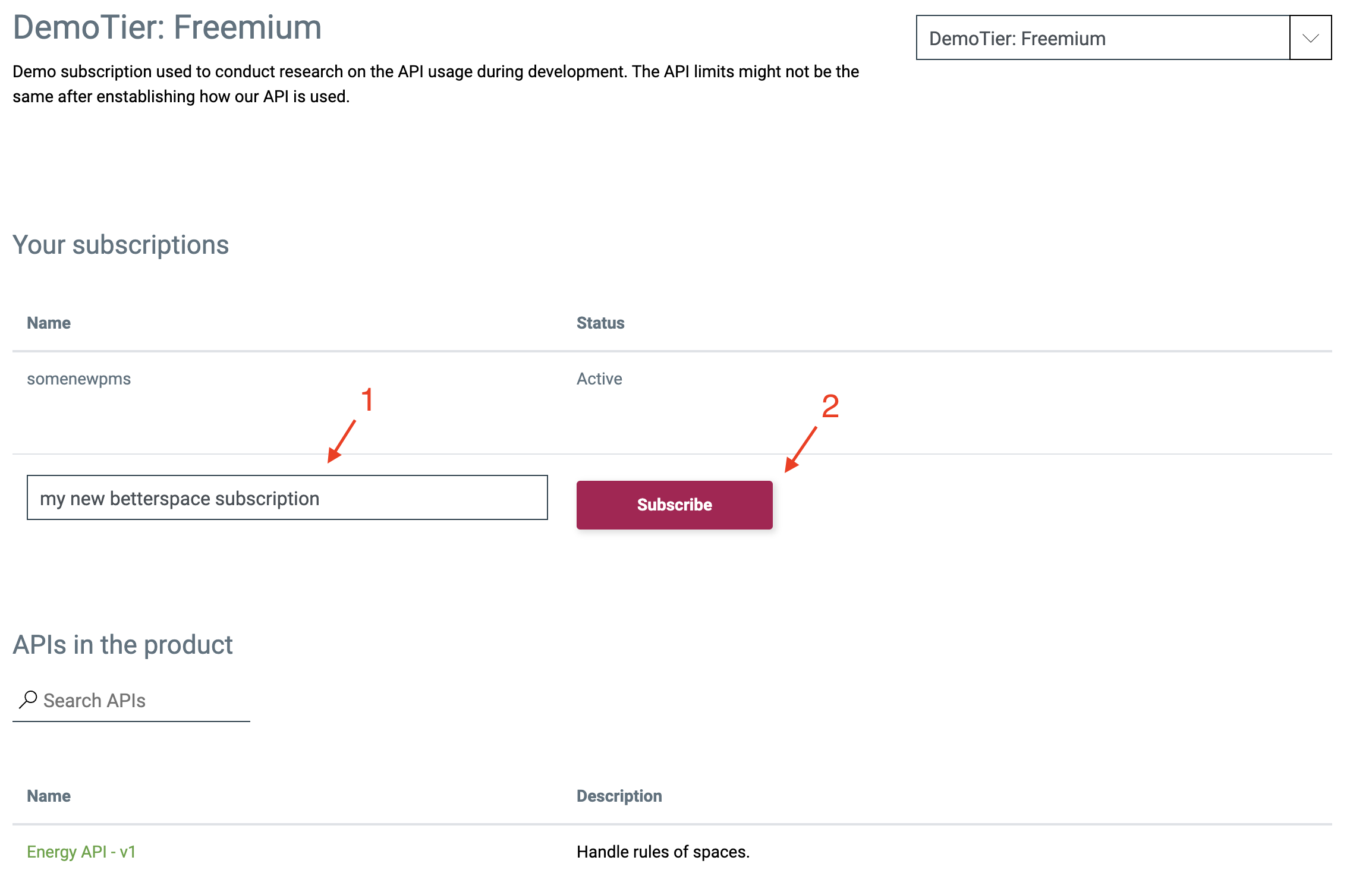
Once logged in go to the Subscriptions page and select a subscription that fits your needs. Press Subscribe after choosing a product and setting up a name for your subscription.
Once you request is approved, you will be able to see your subscription key in the Profile section. This subscription key gives you a general access to the API you subscribed to but does not grant any permission to location specific data.
3. Client id and client secret
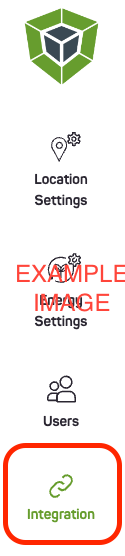
To get specific location access, a company administrator needs to create a new API integration in the integrations menu for a specific location. This will generate a client Id and client secret for this location, which can be used to generate an access token.


4. Generate access token
For authenticating your requests you will send the subscription key in the 'Ocp-Apim-Subscr' header and the generated token in the 'Authentication' header
(In the developer portal you can select the subscription key from the subscription drop-down and then add a custom 'Authentication' header to the request).
Use client Id and client secret to generate an access token. This token can be generated by using the following request:
POST https://dsfdsfdsfr/token
Example Payload
Example Response
curl Example
5. Done
Reading this paragraph probably means that you have everything necessary to talk with our API. You should take a visit to our Examples section.